
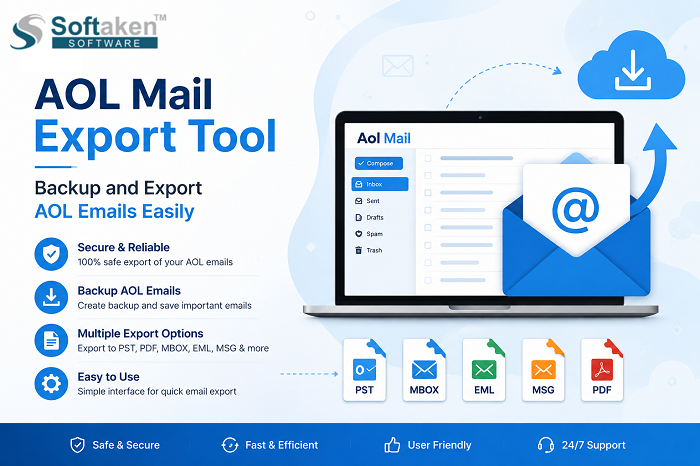
AOL Mail is still used by millions of users for personal and business communication. Many users can keep important data like emails, attachments, invoices, reports, and even account details in their AOL mailboxes. However, just relying on cloud storage isn’t always that safe because accidental deletion, account hacking, sync troubles, or even mailbox corruption can make data disappear for good.
This is why a lot of users try to find an AOL Mail Export Tool that will help them export AOL emails to numerous file formats and preserve mailbox data locally.
This guide will help you understand everything about AOL email export, manual methods, limitations, and the easiest automated solution.
Why Users Need an AOL Mail Export Tool
There are many situations where users want to export AOL mailbox data. Some common reasons are:
Backup Important Emails
Many users want to create a local copy of their AOL emails to keep their data safe from accidental deletion or account problems.
Free Up Mailbox Space
AOL mailbox storage can become full because of large attachments and old emails. Exporting emails helps users clean their inboxes.
Migrate to Another Email Client
Users often move from AOL Mail to Outlook, Thunderbird, Gmail, Office 365, or other platforms.
Save Emails in Different Formats
Many users need emails in PST, PDF, EML, MBOX, or MSG formats for legal, business, or personal purposes.
Offline Access
After exporting AOL emails locally, users can access their mailbox data even without an internet connection.
Common Problems Faced by AOL Mail Users
- Failed to download full mailbox data
- The export process takes too much time
- Missing attachments after export
- Manual methods are difficult for non-technical users
- Email format changes after migration
- Exporting duplicate emails
- There is no direct method to export AOL emails to PST.
Due to these concerns, many users prefer to use an automatic AOL Mail Export Tool.
Manual Methods to Export AOL Emails
There are a few manual ways available to backup AOL emails. However, these methods are limited and time-consuming.
Method 1: Forward Emails Manually
Users can manually send, forward, AOL emails to another email address, account, whatever.
Steps:
- Log in to AOL Mail
- Open the email you want to export.
- Click the Forward option
- Type in the other email address
- Send the message.
Limitations:
- Works only for a few emails
- Time-consuming
- There is no bulk email export feature.
- Attachments can cause trouble or behave weirdly.
Method 2: Save AOL Emails as PDF (via print option)
Users can convert emails into PDF files by using the print feature, which is pretty straightforward.
Steps:
- Open AOL Mail
- Select the email you want.
- Click Print
- Choose Save as PDF
- Save the file.
Limitations:
- You can’t export multiple emails together as one go
- No true mailbox folder backup, sadly
- Email metadata might not stay intact, or it may get messy
Why Users Prefer Professional AOL Email Backup Software
A professional AOL Mail Export Tool makes the overall procedure simple and saves time. No technical issues with exporting thousands of emails for users.
Unlike manual methods, automated AOL email backup software gives faster performance, safer email migration, advanced filtering, and a bunch of export formats. Users who are searching for the best AOL Backup Tool usually prefer these automated solutions over some free manual approaches that take longer and feel more tedious.
Advanced Features of AOL Mail Export Tool
Export AOL Emails to Multiple File Types
Users can convert AOL emails to multiple file formats as per their requirements.
Take, for example:
- Outlook PST
- Thunderbird MBOX
- PDF for print and legal records
- Windows Mail EML
All Mailbox Data Backup
The tool exports:
- Attachments
- Contact
- Folder hierarchy
Retain Original Formatting
The software retains:
- To / From information
- Email subject lines
- Hyperlinks
- Photos
- Attachments
- Read / Unread status
Mass Email Export
Now users can export thousands of AOL emails altogether without repeating the process time and again.
Advanced Email Filtering
The app gives filter options like:
- From To Date Range Filter
- Filter by Subject
- Folder selection
- Remove identical e-mails
Login Process (Secure)
The modern AOL Mail Export Tools use secure authentication methods to safeguard user accounts during the export process.
Simple Interface
The software is created with a simple interface that enables beginners to export AOL emails without any technical skills.
How to Backup AOL Emails Using the AOL Mail Export Tool?
Follow these simple steps:
- Download and install the app on your Windows PC.
- Launch the AOL Backup Tool
- You need to check into your AOL email account using your login credentials.
- Choose the folders within your AOL mailbox that you wish to backup (Inbox, Sent, Drafts, Trash, custom folders, etc.).
- Select export format like PST, EML, MSG, MBOX, EMLX, and HTML.
- Click the Browse button and select the destination folder to which you want to save the backup.
- Click the “Process Now” or “Process” button to start the backup.
- Wait for the process to finish and then open the backup files saved in the place you chose.
AOL to PST Conversion Made Easy
Many users desire to transfer their AOL emails to Microsoft Outlook.
The default Outlook file format, PST, stores:
- Contacts
- Calendars
- Attachments
AOL Mail Export Tool offers users the ability to directly convert AOL emails to PST format without any problem with Outlook installation.
Benefits of Exporting AOL to PST
- Easy Outlook access
- Offline email storage
- Better email management.
- Secure backup option
- Portable mailbox file
Backup AOL Emails to Hard Drive Securely
Saving AOL emails locally on a hard drive is one of the safest ways to secure important data.
Benefits are like:
- protection from accidental deletion
- fast recovery choice
- extra data safety
- offline accessibility
- Plus long-term email storage.
Users can put their exported mailbox files on:
- external hard drives
- SSD storage
- USB drives
- Cloud backup storage
Export AOL Emails to PDF
Many organizations and legal professionals prefer the PDF format for storing emails.
PDF files include:
- Easy to share
- Print Friendly
- Secure, open to all
If you want to save AOL emails as PDF, including attachments and formatting, you can utilize an AOL Mail Export Tool.
AOL to Office 365 Email Migration
Users are transferring away from AOL Mail and over to Microsoft 365 more and more, mainly for smoother collaboration and that kind of productivity feel.
With an AOL Mail Export Tool, the whole migration from AOL to Office 365 becomes less painful because it transfers mailbox data in a secure way, so nothing sort of gets lost or messed up along the way.
Benefits of Office 365 Migration
- Better email management
- Cloud accessibility
- Advanced security features
- Storage options
- Microsoft application integration
AOL Mail to Gmail Migration
Some users move from AOL Mail to Gmail because of Gmail’s modern interface and Google ecosystem.
The export tool helps users migrate:
- Emails
- Attachments
- Folder hierarchy
- Metadata
- Without losing mailbox data.
How to Choose the Best AOL Mail Export Tool
Before picking any software, users should look at a few key things, just to be safe:
- Compatibility: Make sure it really supports Windows 11, 10, 8.1, 8, 7, and older Windows versions too.
- File Format Support: Pick a tool that allows multiple export formats, so you are not stuck later.
- Security Features: The software should handle secure email processing and keep data protected.
- Free Trial Option: A demo version can be useful, letting you test the workflow before you pay.
- Technical Support: Solid customer assistance matters, especially when technical issues show up and you need quick help.
Tips for Safe AOL Email Backup
- Always make regular email backups
- Use strong AOL passwords
- Turn on two-factor authentication
- Put backup files in several locations, just to be safe
- Check your exported mailbox files after each backup
- Keep your software updated regularly
Difference Between Manual and Automated AOL Email Export
| Feature | Manual Method | AOL Mail Export Tool |
|---|---|---|
| Bulk Export | No | Yes |
| Time Saving | No | Yes |
| Attachment Backup | Limited | Yes |
| Folder Hierarchy | No | Yes |
| Multiple Formats | No | Yes |
| Technical Knowledge | Required | Not Required |
| Large Mailbox Support | Difficult | Easy |
| Risk of Data Loss | High | Low |
Who Should Use the AOL Mail Export Tool?
This tool is useful for:
- Individual users
- Business professionals
- IT administrators
- legal teams
- Students
- small businesses
- organizations migrating email platforms.
Basically, anyone who wants a secure AOL email backup and migration can go ahead and use the software.
Conclusion
Exporting AOL emails is pretty important, especially for data security, migration needs, and long-term mailbox management. Sure, manual options exist, but they tend to be slow and kind of messy, so they don’t work well for bigger mailboxes. That’s why using a Bulk AOL email export Tool usually feels like the simplest and most trustworthy path to back up AOL emails, keep and save attachments, restructure AOL mailbox data, and move emails into other formats without a lot of hassle.
Whether you need an AOL Backup Tool just for personal matters or a more professional AOL Email Migration Tool that fits business requirements, picking solid AOL email backup software can help efficiently guard your mailbox information.
Frequently Asked Questions
Can I export AOL emails to PST format?
Yes. An AOL Mail Export Tool lets users export AOL emails straight into PST format for Outlook.
Is it possible to backup AOL emails with attachments?
Yes, the software exports full messages along with attachments included, not only the email body.
Can I migrate AOL Mail to Office 365?
Yes, many AOL export tools support direct AOL to Office 365 migration.
Does the software maintain folder hierarchy?
Yes, a professional AOL Mail Export Tool keeps the original folder structure during the export process.
Can beginners use the AOL Mail Export Tool?
Yes, most tools come with a simple interface and basic steps that suit non-technical users.