
Introduction
It is not always handy to work with a 500-page PDF as a single document when users just need some parts of it for sharing, storing, reviewing, or a department. A long PDF can have multiple chapters, reports, records, or sections that are not always needed at the same time.
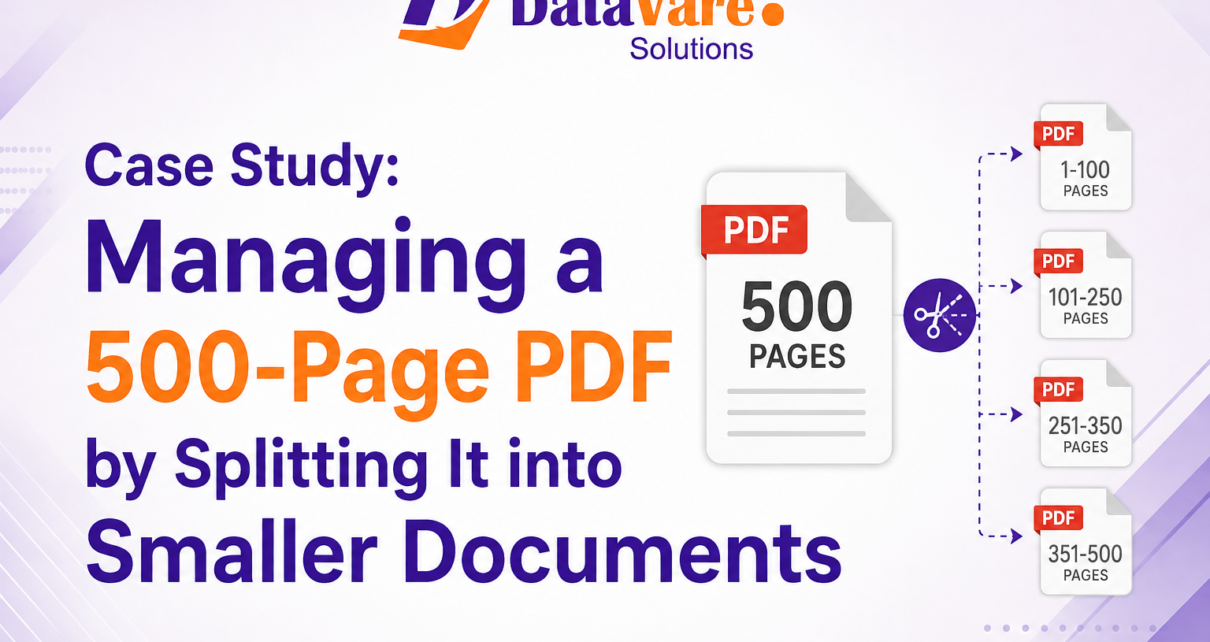
This case study is a typical document-management task of splitting a 500-page PDF into smaller PDF files. It’s about the user’s real problem, why it happens, why manual handling isn’t the answer, and a pragmatic page-based solution.
User Situation
A user was working on a 500-page PDF with multiple sections of a long document. But it was getting more difficult to keep all the pages in one, as I needed different sections for different purposes.
The user wanted to split the large document into smaller PDFs, rather than continually dealing with the entire 500-page file.
The basic requirement was simple:
Split the 500-page PDF into smaller documents by page.
There was no need to edit the content or repair the PDF. The source file was a perfectly valid PDF that just needed to be cut up into manageable chunks.
Problems with the 500-page PDF
1. The whole document was too big to handle conveniently.
It may still be one valid document in a 500-page PDF, but it may be inconvenient to work with the whole file every time. Often, the user wanted parts of the document, not the whole thing.
A large PDF can therefore cause a document-management problem, even if the file itself seems to be working fine.
2. Requirement for Separate Sections
The document had many sections, and not all users and departments required access to all 500 pages.
For example, if a particular section was on pages 101-150, sending the whole 500-page document would be unnecessary when only those pages were required.
3. Don’t Need to Share the Whole PDF
I made separate files for the pages that mattered. Sending the whole PDF when only a certain section was requested created extra handling work.
I created separate files for the relevant pages. It was a more practical structure for sharing the documents.
4. Time-Consuming Manual Separation
If you have hundreds of pages in a document, it can be tedious to manually extract pages and create a separate PDF file.
The user would have to select pages again and again, create documents, save them, and then verify the files produced. The process is becoming increasingly inconvenient for many sections.
5. Difficult to Organize the Document
Organizing by section was also less convenient, as all 500 pages were in one file. Smaller documents could be identified and stored according to the sections they belong to.
This limitation was the main reason the user needed a PDF page splitter instead of a generic document editor.
Problem Root Cause
The issue was not corruption or not being able to open the PDF.
The real problem was the document size and structure.
- The PDF was 500 pages long.
- Some page ranges were required at different points.
- Various sections had to be dealt with separately.
- I only needed to provide them with specific sections of the document.
- Manual page extraction was repetitive.
- Separate PDF files made it easier to organize.
So the correct requirement was to split the PDF by pages and not to modify or change its content.
Solution Desired
The user was looking for a simple way to split the existing PDF into smaller PDF files, and the focus was on page-based splitting.
PDF Total Utility also provides a Split PDF File option, which allows you to split the large PDF documents into smaller PDF files on the basis of pages. Its documentation guides you through choosing the PDF, choosing the splitting option, specifying the desired page division, and creating the smaller PDF files. PDF Complete Case Study Solution 500-Page PDF Breakdown
The practical workflow consisted of the following steps:
Step 1: Prepare Source PDF
A 500-page PDF was held ready to process. A readable PDF had to be valid because corrupted files can’t be processed.
Step 2: Launch PDF Split Function
The user launched the app and selected the option to DataVare split PDF files.
Step 3: Choose the 500-Page PDF
The large PDF was added as the source document for the split operation.
Step 4: Set Up the Page-Based Division
The user defined the necessary page division by the sections that had to be separated.
For example, a long document could be split into smaller page groups such as
- Pages 1 to 100
- 101–200 Pages
- Pages 201-300
- Pages 301-400
- 401-500 Pages
The exact page layout depends on the user’s document needs.
Step 5: Set the Output Location
A folder was picked to save the smaller PDF documents that were generated.
Step 6: Initiate the Splitting Process
The split operation was started, and the utility generated separate PDF files from the original document.
Step 7: Validation of the Resulting Files
When finished, all generated PDFs can be opened one by one to verify their page ranges and orderliness.
Results of the Case Study
The 500-page PDF was split into smaller PDF files according to the specified page layout.
This solved the original user problem by allowing the document:
- Easier to organize
- Easier to share by chapter
- one at a time easier to deal with
- Less reliant on opening the entire 500-page document over and over
- Easier to sort and to store
The key point is that the solution involved splitting the existing PDF into smaller files, not other PDF operations.
What this case shows
This case shows that a sizable PDF doesn’t have to be kept as a single file when users regularly work on individual sections.
When is a PDF splitter useful?
- The long report must be divided into sections.
- Some page ranges need separate files.
- Different departments need different parts of a document.
- It’s easier to share smaller PDFs.
- The long document needs better file organization.
This approach is especially relevant to reports, manuals, records, and other multi-page PDF documents.
Conclusion
In this case the 500-page PDF was not an issue, as the document was necessarily damaged. The real issue was what to do with such a long file when smaller parts needed to be used independently.
A direct solution existed for the user’s need to split documents across pages. Rather than repeatedly handling the entire 500-page file, individual sections could be extracted into separate PDFs and used as needed.
This makes splitting PDFs on a page basis a viable option for users who deal with long reports, records, manuals, and other large PDF documents.
Frequently Asked Questions (FAQs)
1. Can I split a 500-page PDF into smaller PDF files?
Yeah. A valid 500-page PDF can be split into smaller PDF documents according to the page structure you want.
2. Would it be possible to split a large PDF into certain page ranges?
Yes. The PDF splitting function is used to split a large document into pages so that different groups of pages can be created as different files.
3. Do I need Adobe Acrobat to split a PDF?
No. There is a dedicated utility for splitting PDF files, and it does not require Adobe Acrobat.
4. Would it be possible to split a corrupted 500-page PDF?
No. We do not support corrupted PDF files. The source document is supposed to be valid and readable before the splitting operation.
5. Can this method be used for long reports and business documents?
Yes. Page splitting can be useful if you want to split long reports, logs, manuals, or other multi-page PDFs into smaller documents for organization or sharing.