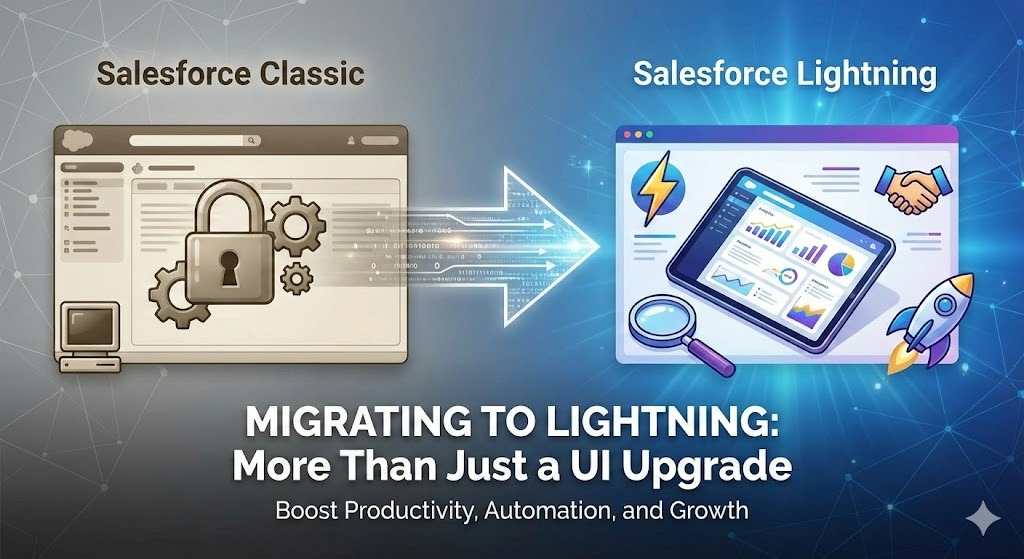
What if your existing CRM system is holding your team back without you even knowing it? That’s what happens when businesses stick with Salesforce Classic too long. Moving to Lightning might seem overwhelming at first, and many see it as just a visual update. But there’s so much more happening beneath the surface. Salesforce Lightning implementation brings features that help teams finish tasks quickly, understand data better, and work from anywhere with ease. This article walks through what Lightning offers, why the upgrade matters so much, and how to handle the Salesforce Lightning migration process the right way.
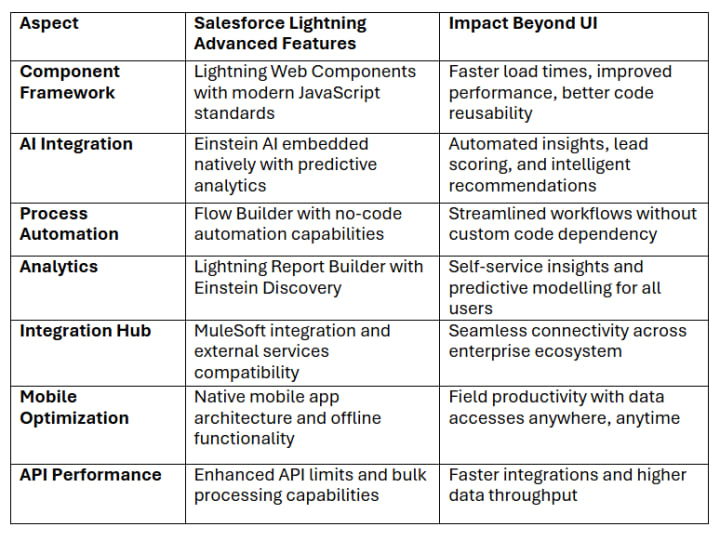
What Are the Key Features of Salesforce Lightning Beyond the Interface?
Lightning offers much more than visual changes. Explore the powerful features hiding beneath the surface that make your work faster, smarter, and easier. Discover what Lightning can really do.
What Are the Key Benefits of Salesforce Lightning Migration?
See what Lightning brings to your team. Explore the clear benefits that show why companies are making the switch. Learn how Salesforce Lightning migration services help your team work faster and achieve better results.
1. Kanban Board View
Lightning lets you see your deals as cards on a board, like sticky notes on a wall. You can drag them from “talking to customer” to “deal closed” stages. This visual method makes it easier to understand where things stand. Classic only had boring list views that were harder to work with.
2. Built-In Reports Dashboard
Lightning has a homepage that shows your most important numbers right when you log in. You see your sales goals, upcoming tasks, and team performance without searching. Classic made you navigate through multiple menus to find this basic information, wasting several minutes each day just getting started.
3. Better Mobile Experience
Lightning works really well on phones and tablets, unlike Classic, which was built for computers only. Your sales team can update customer information, check orders, or close deals right from their phone while meeting clients. Classic’s mobile version was clunky and hard to use, but Lightning feels natural on any device.
4. Simple Page Building
With Lightning, you can change how your pages look by simply dragging and dropping boxes around. Classic required special coding skills to change anything. Now, regular team members can customize their own workspace to show exactly what they need without calling IT for help.
5. Lightning Flow Builder
Lightning Flow Builder lets you automate repetitive tasks without writing code. You can create automatic email reminders, update records, and assign tasks to team members. Classic had older workflow tools that were limited and confusing. Flow Builder is more powerful and easier to learn.
6. Activity Timeline View
Lightning shows all your emails, calls, and meetings with a customer in one neat timeline. You can see the whole story of your relationship at a glance. Classic scattered this information across different tabs, making you click around to find what happened when. The timeline saves time and prevents mistakes.
What Are the Best Practices for Salesforce Lightning Migration?
Get your Salesforce Lightning migration right the first time with the help of Salesforce Lightning migration assistant. Explore the proven practices that include planning, preparation, and rollout. Find practical advice from Salesforce Lightning services providers that makes migration less stressful and more effective.
I. Check If Your Salesforce Org Is Ready for Lightning
Before jumping into Lightning, you need to see if your current Salesforce setup can handle the migration. Salesforce gives you a free Lightning Readiness Check tool that scans your Salesforce org and tells you what might break or need fixing. This report shows you exactly what works and what doesn’t in Lightning.
Running Your Lightning Health Check
- Use the Lightning Readiness Report in Salesforce Setup to scan your entire org automatically
- Look for custom code and Visualforce pages that won’t work properly in Lightning Experience
- Check if your third-party apps from AppExchange are Lightning Ready certified
- Identify browser plug-ins your team uses that might not work in the Lightning interface
- Review custom buttons and JavaScript that need rebuilding as Lightning Actions
- Make a spreadsheet listing all issues found so you can fix them one by one
II. Turn On Lightning Experience Alongside Classic
Don’t force everyone to switch overnight. Salesforce lets you run both Classic and Lightning at the same time. This means your team can keep working in Classic while you slowly prepare Lightning. Users can flip back and forth between both versions until Lightning is completely ready for daily use.
Enabling Dual Interface Mode
- Go to Setup and turn on Lightning Experience without disabling Salesforce Classic access
- Give access to yourself and a small test group to Lightning first before rolling it out to everyone
- Keep Classic as the default view so regular users don’t accidentally switch too early
- Test all your important Salesforce processes in Lightning while keeping Classic as a backup
- Allow users to switch between Classic and Lightning using the profile switcher at the top
- Run both versions for at least two months before making Lightning the only option
III. Start with a Small Test Group
Don’t migrate all departments to Lightning on day one. Pick a small group of five to ten users who are comfortable with technology changes. Let them use Lightning daily while everyone else stays in Classic. These test users will find problems you missed and give honest feedback.
Building Your Lightning Pilot Team
- Choose Salesforce users who know the system well and prefer trying new things
- Include people from different departments, like sales, service, and management, to get varied perspectives
- Give pilot users at least three weeks of using Lightning before asking for detailed feedback
- Meet with your test group weekly to hear what they like and what frustrates them
- Let pilot users switch back to Classic anytime if Lightning blocks their important work
- Document every problem pilot users find and fix issues before expanding to more people
IV. Redesign Your Page Layouts for Lightning
Lightning pages are built differently from Classic pages. Lightning uses a card-based layout with related lists appearing in different spots. You need to review every object’s page layout and reorganize fields, so they make sense in the new Lightning card structure.
Optimizing Lightning Record Pages
- Use Lightning App Builder to create custom record pages for your main objects
- Organize fields into logical sections using the Lightning card components on the page
- Move the most important fields to the top highlights panel, where users see them immediately
- Add helpful components like activity timeline, related lists, and path to guide users
- Create different Lightning page variations for different record types or user profiles
- Remove fields nobody looks at instead of cluttering Lightning pages with unused information
V. Rebuild Your Reports and Dashboards
Classic dashboards don’t automatically transfer to Lightning. While reports mostly work the same, dashboards need rebuilding in Lightning using the new dashboard builder. Lightning dashboards look better and offer more interactive features than Classic dashboards ever had.
Creating Lightning Dashboards
- Identify which Classic dashboards your team uses daily
- Rebuild important dashboards in Lightning using the Lightning Dashboard Builder interface
- Use the compact layout option to fit more dashboard components on one Lightning screen
- Add filters to Lightning dashboards so users can change date ranges without creating new dashboards
- Enable dashboard subscriptions so users get automatic email updates on their key metrics
- Share Lightning dashboards with appropriate users and set them as favorites for easy access
VI. Train Your Users Before Launch Day
Moving to Lightning without training is like throwing people into deep water without swimming lessons. Lightning looks and works very differently from Classic. Schedule training sessions for educating users on where to find things and how to complete their daily tasks in the new interface.
Educating Your Team on Lightning Skills
- Create simple training videos showing how to do common tasks in Lightning versus Classic
- Hold live training sessions where users can ask questions and practice in a Lightning sandbox
- Make cheat sheets comparing where Classic features are available in Lightning Experience
- Assign Salesforce Trailhead modules about Lightning so users can learn at their own pace
- Set up office hours where users can drop by and get help with Lightning questions
- Send weekly tips emails highlighting one useful Lightning feature people might not know about
VII. Create Custom Lightning Apps
Lightning lets you create custom apps that show only the tabs and features specific user groups need. Instead of showing everyone every single tab in Salesforce, you can build focused apps for sales teams, service teams, or managers with just their relevant tools.
Building Focused Lightning Apps
- Use the Lightning App Manager in Setup to create new custom apps for different teams
- Add only the tabs each team uses instead of showing all objects to everyone
- Choose a unique icon and color for each app so users can easily tell them apart
- Set different utility bars for each app with tools like notes or calculators that the team needs
- Assign specific Lightning apps to user profiles so people see their relevant apps by default
- Create an easy navigation menu, letting users switch between apps if they work across departments
VIII. Set Up Lightning Console Apps
If your team handles lots of cases, leads, or service requests, Lightning Console Apps help them work faster. Console apps let users see multiple records at once in split screens and tabs, just like having several browser windows open simultaneously inside Salesforce.
Configuring Lightning Console Features
- Build console apps for service agents and sales development reps who handle high record volumes
- Enable split view so agents can see a case and related account details simultaneously
- Turn on keyboard shortcuts, allowing power users to navigate without touching their mouse
- Add utility bar items like omni-channel, notes, and history for quick access to tools
- Configure workspace tabs so related records open automatically when agents view a case
- Set up softphone integration in the console for teams, making calls directly from Salesforce
IX. Migrate Your Email Templates
Classic text and HTML email templates work differently in Lightning. While simple templates transfer fine, complex HTML templates often break. Lightning offers a new, enhanced email template builder that’s much easier to use than Classic’s HTML editor.
Updating Email Templates for Lightning
- Review all email templates currently used in your workflows and email actions
- Use Lightning’s enhanced email template builder to recreate important templates with drag-and-drop design
- Test each template by sending sample emails to yourself in Lightning to check formatting
- Update merge fields in templates since some field references changed between Classic and Lightning
- Replace templates using Classic letterhead with new Lightning templates that look modern
- Delete old unused email templates cluttering your template folder before migrating to Lightning
X. Configure Lightning Path for Guided Selling
Lightning Path is a visual guide that appears at the top of record pages, showing users what stage they’re in and what to do next. This feature didn’t exist in Classic. Setting up Path helps your sales and service teams follow your company’s process consistently.
Setting Up Path Components
- Enable Path on opportunity, lead, case, or custom objects that have important stage fields
- Add key fields to each Path stage so users see exactly what information they need to fill in
- Write guidance text for each stage explaining what actions users should take before moving forward
- Include helpful links in Path guidance, pointing to resources like pricing sheets or templates
- Celebrate success by configuring the final stage to display congratulations messages when deals close
- Track Path usage after launch to see if users follow the guided process you built
XI. Enable Einstein Activity Capture
Lightning makes it easier to connect Salesforce with your email and calendar. Einstein Activity Capture automatically logs emails and meetings from Outlook or Gmail into Salesforce, saving users tons of manual data entry time that Classic required.
Connecting Email and Calendar
- Set up Einstein Activity Capture in Setup to connect with your company’s email system
- Configure which email domains should sync automatically to prevent personal emails from syncing
- Choose whether to sync emails and events automatically or let users manually select what syncs
- Test the connection with a few users before rolling out email sync to your entire team
- Train users how to review synced emails and associate them with the correct Salesforce records
- Monitor sync status regularly to catch connection issues before users start complaining about missing data
XII. Plan Your Full Rollout Schedule
After testing and fixing everything, you need a clear plan for moving everyone to Lightning. Don’t switch all users on the same day unless your company is small. Roll out Lightning department by department over several weeks, so you can handle problems before they affect everyone.
Rolling Out Lightning Smoothly
- Create a rollout calendar showing which departments switch to Lightning on which specific dates
- Start with departments that have had pilot users since they are already familiar with Lightning
- Make Lightning the default for each group while keeping Classic access available temporarily
- Send reminder emails to each department one week before their Lightning switch date
- Have extra support staff available on rollout days to answer questions and solve problems quickly
- Turn off Classic access for each group two weeks after their Lightning rollout if everything works fine
Summing Up
Moving to Salesforce Lightning is clearly more than a visual change. It’s a complete upgrade that transforms how your teams work every day. The features bring real power. The benefits touch every part of your business. Yes, migration takes planning and effort, but the results make it worthwhile. Following best practices ensures a smooth transition. If you are planning a transition to Lightning and looking for Salesforce Lightning support, you may seek help from Salesforce Lightning consultants.