
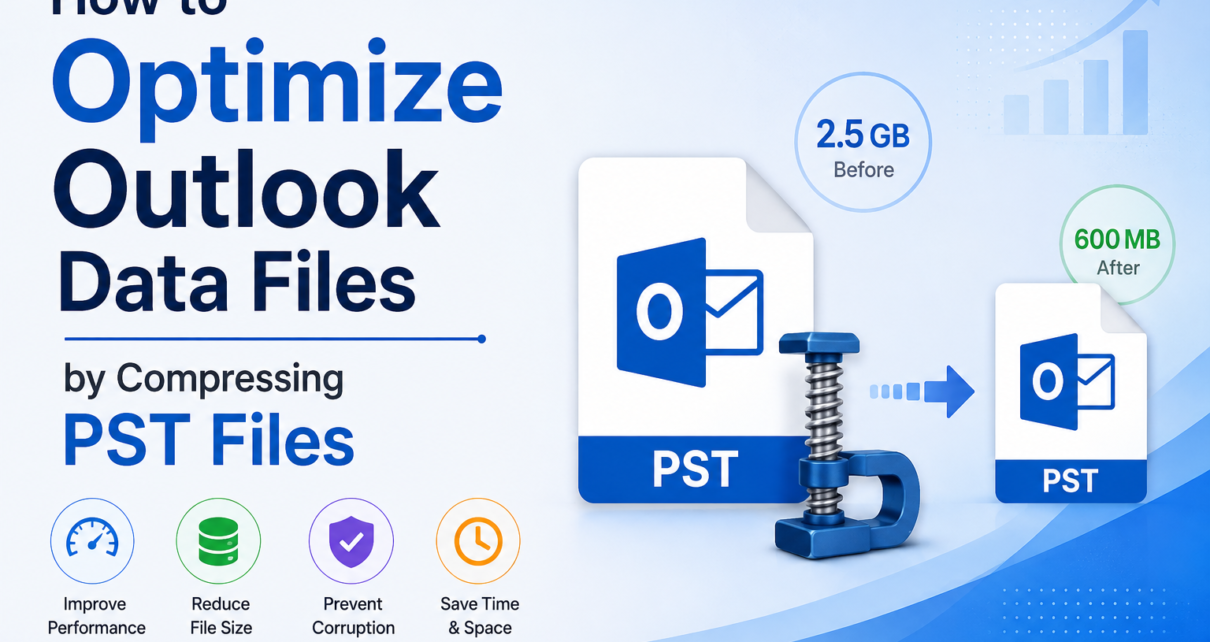
Introduction
If you’ve been experiencing a slow Outlook mailbox or an oversized PST file, you’re not alone. When you save attachments, archive messages, and store calendar events in Outlook, the data files grow over time. A large PST file can take up a lot of disk space, can take longer to back up and can become difficult to manage.
The good news is that optimizing Outlook data files doesn’t have to be hard. Compressing PST files is one of the best ways to improve storage efficiency and keep your mailbox organized. If you are maintaining old email archives or you are preparing files for backup, keeping your PST files smaller can make it easier to manage files on a day-to-day basis.
In this article, you will learn: Why PST file optimization is needed, practical manual ways, their limitations, and how Softaken Compress PST Tool makes the whole process easier.
Why Users Need to Optimize Outlook Data Files
1. Free Up Valuable Storage Space
Large PST files can take up several GB of storage space. This reduces their size to save disk space without losing important mailbox data.
2. Improve Backup Efficiency
Smaller Outlook data files copy and back up faster, so regular data protection is quicker and easier.
3. Simplify Email Archive Management
Working with many large-sized PST files is a complex task. Optimized files are easier to organize, store and retrieve when needed.
4. Improve Overall Performance
Outlook can handle large PST files, but large archives can slow down processing. Optimizing PST files can help preserve performance over time.
5. Prepare Files for Migration or Storage
If you’re moving Outlook archives to another computer, external drive or cloud storage, compressed PST files are easier to move and manage.
Method 1: Remove Unnecessary Mailbox Items
Best for: Users who can still access their mailbox before archiving
Steps
- Delete promotional emails and spam that you don’t need.
- Strip duplicate email addresses.
- Save large attachments separately if you no longer need them in Outlook.
- Clear the Deleted Items folder.
- Create a new backup and clean the mailbox.
Pros
- Free of charge.
- Limits growth of future mailboxes.
- Better organization of your mailbox.
Cons
- Does not decrease the size of a PST file.
- Long for big mailboxes.
Method 2: Archive Older Emails
Best for: Users who want to separate active emails from older messages.
Steps
- Find email addresses no longer in regular use.
- Move them to separate PST archive files.
- Sort the archives by year, project or department.
- Keep archive files secure.
- Backup archived PST files regularly.
Pros
- Keeps the active mailbox lighter.
- Helps organize your emails.
- Eases the search for old emails.
Cons
- Creates several PST files to deal with.
- Does not compress existing archive files.
Method 3: Organize Attachments
Best for: Users with PST files that have many large attachments.
Steps
- Search for emails with large attachments
- Download the attachment to your local disk.
- Make sure files are stored securely.
- Remove unnecessary copies of attachments where appropriate.
- Keep regular backups of important documents.
Pros
- Reduces future growth in PST.
- Frees up disk space.
- Makes maintenance of the mailbox easier.
Cons
- Requires handwork.
- PST free space is not used until it is compressed.
Professional Solution: Compress PST Files Efficiently
While manual cleanup can help reduce future mailbox growth, it cannot reclaim the unused space that is already present inside a PST file. The best way to compress Outlook data files is to use a specialized compression utility.
DataVare Outlook PST Compact Tool is used to compress Outlook PST files without affecting mailbox content. The software saves email, contacts, calendars, journals, notes, tasks, attachments, folder hierarchy and metadata in a smaller-sized file.
The tool is good for both personal and business users working regularly with large Outlook archives. The simple interface allows even novice users without technical know-how to optimize PST files.
The software is a reliable and efficient solution for preparing files for backup, reducing storage usage, or maintaining archived Outlook data.
Main Features and Benefits
- Compresses large Outlook PST files securely.
- Maintains attachments and original folder structure.
- Protects mailbox metadata when compressing.
- Supports large Outlook archive files
- Easy interface for newbies.
- Works with the main Windows operating systems.
- Great for individual users and organizations.
Conclusion
Outlook PST files tend to get large, especially if you’ve been saving e-mail for years. While deleting unnecessary emails, organizing attachments and archiving older messages are good maintenance practices, they don’t physically reduce the size of an existing PST file.
If you want to optimize Outlook data files and free up unused storage space, then the most effective solution is to compress the PST file. Compress PST Tool makes it simple to do that while keeping your mailbox data, folder structure and attachments intact.
Keep Outlook archives in order, free up some space and make future backups a lot easier with regular mailbox maintenance and reliable PST compression.
Frequently Asked Questions
1. Why do Outlook PST files become so large?
Your PST files get bigger as you receive emails, save attachments, archive messages, and store calendar events, contacts, and other Outlook items.
2. Will deleting emails reduce the size of the PST file?
Not immediately. When you delete emails, you are actually creating free space in the PST file but the size of the PST file will not change unless you compress it.
3. Is compressing a PST file safe?
Yes. A reliable PST compression utility will keep your mailbox content like emails, contacts, attachments, calendars, metadata and folder structure safe.
4. Is it possible to compress several PST files?
Yes. professional PST compression tool supports several Outlook data files, which makes it easier to optimize large email archives.
5. Why should I use Softaken Compress PST Tool?
Compress PST Tool offers a simple and easy way to optimize Outlook PST files. It reduces the file size but maintains the integrity of the mailbox, attachments, folder hierarchy, and other important Outlook data.