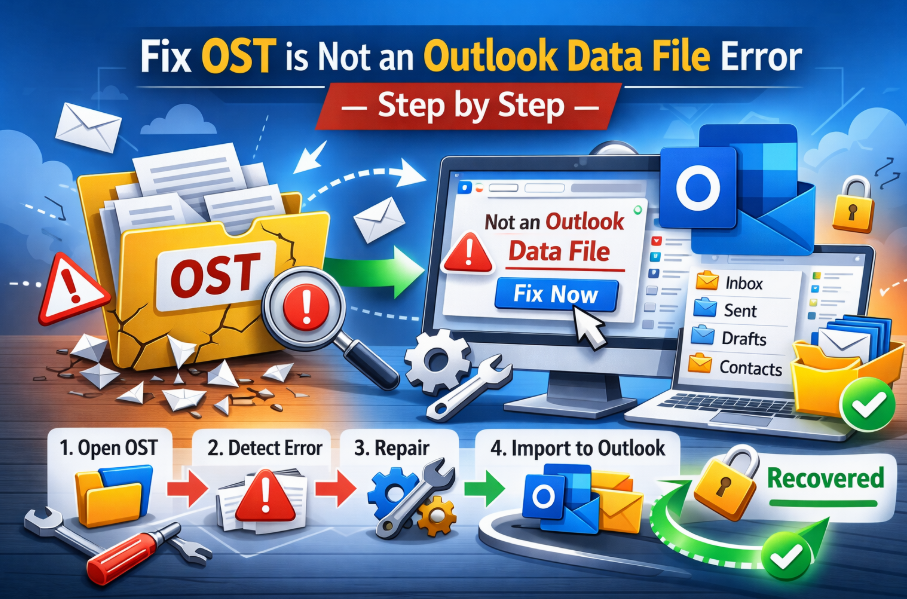
Imagine you open your email and see a message saying that OST is not an Outlook data file. This error blocks you from seeing your emails, contacts and calendars. It happens when Outlook tries to read your local data file but finds that the file is broken, orphaned or does not match the email address.
You have to either let Outlook create a fresh data file or change the file into a format that Outlook reads if you have important emails stuck in the old one in order to fix this. Today we will show you how to solve the OST is not an Outlook data file error so that you can get back to your messages without losing data. We will also see how to create a new profile and how to use an expert tool such as the SysTools OST to PST Converter Tool to save your old emails if the file is damaged.
Why Does Outlook Say OST is Not an Outlook Data File?
Let’s understand why you are seeing this error before learning how to fix it. Outlook uses the OST files to let you work offline but these files are very sensitive. The link between the application and file can break if your Outlook profile is updated or if your computer shuts down suddenly. Following are the common reasons for the OST not being an Outlook data file error:
- The OST is disconnected from the server (orphaned).
- File structure has been corrupted by a virus or system crash.
- Outlook can no longer recognize the old file format as it has been updated.
Method 1: Create a New Outlook Profile
One of the most common ways to fix this error is to start fresh as a new Outlook profile generates a version that is free from the OST is not an Outlook data file. You can create a new profile by following these steps:
- First make sure that Outlook is shut down.
- Open the Control Panel in your Windows start menu.
- Click on the Mail icon and then select Show Profiles.
- Click Add to type your name for a new profile and then select Ok.
- Enter your email address and password to let Outlook start your account again.
- Change Default: In the Mail window, make sure “Always use this profile” is set to your new one.
- Finally see that the Always use this profile is set to your new one in the Mail Window. When you open Outlook it will create a new file and you will not see the OST is not an Outlook data file message anymore.
Method 2: Delete and Re-download the OST File
You can try deleting the bad file if your account is still active on any email server. Outlook will then try to build a new OST is not an Outlook data file by downloading your mail again. Do not use this method if you have Local-only folders or else you will lose all your folders. Use these steps to re-download the OST file:
- Go to the following path to locate the file: C:\Users\YourName\AppData\Local\Microsoft\Outlook.
- Look for the file named after your email address.
- Right-click the file and select Delete.
- It will see the file is missing and download everything from the server when you open the application.
Note: You can also import OST to Outlook Classic and New Outlook for Windows using very simple steps. If you want to know about it, do give it a read.
Method 3: The Automated Solution
What if you have “Offline” data that hasn’t synced to the server yet? If you just create a new profile, those old emails might be lost forever. If your old .ost is not an Outlook data file .pst error is still there, you need a way to extract that data.
When you create a new profile there is a chance that the old emails might get lost forever. If your old .ost is not an Outlook data file .pst is still there then you need a way to extract the data.
The expert tool is an effective solution as it can read a file even though Outlook says OST is not an Outlook data file. It takes your broken or orphaned file and turns it into a healthy PST file that you can open in any Outlook account.
Why is This Tool Recommended?
- Convert OST files into different file formats: PST, MBOX, MSG, EML, EMLX, NSF.
- One of the most important features is that it supports the corrupted, inaccessible and orphaned OST files.
- Exports selective items from OST to PST of any folder and category.
- Save and Load Scan for Faster Re-scanning of Large OST Files.
- It can convert OST to PST without an Exchange Profile or server connectivity.
How to use this tool to Open OST Files in Outlook?
- Open the tool and start it.
- Click on Add File and select the OST file from your computer.
- The tool will then read the file and show you all the emails on the screen.
- Select the PST option and click on Export.
- Go to your New Outlook and click File > Open & Export > Import/Export and then select the file that you just made.
Summary
Here we have covered what to do when you face the OST is not an Outlook data file error and this error happens when the connection between Outlook and your local data is broken or corrupted. You can create a new profile or delete the old file to let Outlook start over if you want to fix this problem.
However if you have important data that is not saved on the server then a professional tool is a good option as it extracts your mail into a healthy PST format. You ca fix the .ost is ot an Outlook data file .pst issue and ensure that your New OST experience is safe and reliable.